
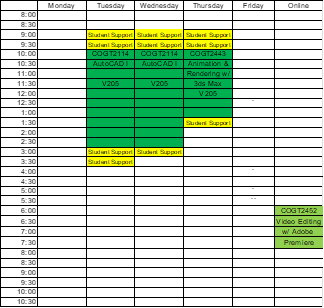
Tuesday or Wednesday
10:00 AM – 3:00 PM And ONLINE,Hybrid means some classes are face to face and some are on online.
This course introduces Autodesk AutoCAD software. General principles and features of the AutoCAD computer-aided drafting system will be used for a variety of design and manufacturing application areas. Topics covered include: Basic object commands, line standards and layers, basic plotting, object snap and autotrack, text styles and multiline text, singe-line text, modifying objects, arranging and patterning objects, multiview drawings, section views and graphic patterns, dimension styles and dimensioning. Standard drafting practices are used. This course includes blueprint reading. General knowledge of the Windows operating system is recommended.
General Education Outcomes are the knowledge, skills, abilities, attitudes, and behaviors that students are expected to develop as a result of their overall experiences with any aspect of the college, including courses, programs, and student services, both inside and outside of the classroom. The General Education Outcomes specifically learned in this course are:
- Communication
COGT2114 AutoCAD I was designed to meet specific student needs for computer graphic technology.
Transferability of this course will be determined by each transfer institution.
Please see an academic advisor for an explanation concerning transfer option.
Faculty Contact Information
John R. Bordeau
Office Phone: 815-802-8863
Email:jbordeau@kcc.edu
Faculty Office: V207(Located upstairs in the Technology Building)
Web Site: https://sites.google.com/kcc.edu/john-bordeau/
Facebook Page: www.facebook.com/KCCcomputerGraphics
YouTube Channel: www.youtube.com/c/johnbordeauprofessor
LinkedIn: John Bordeau
Course Information
At the end of this course, students will be able to:
- Describe the AutoCAD user interface.
- Create Single-Line text on drawing.
- Use modifying tools to edit two-dimensional drawings.
- Use arranging and patterning tools to edit and create objects.
- Create section views.
- Create industry standard dimension styles.
- Create linear and angular dimensions on drawings.
- Create dimensions on features such as circle and arcs.
- Create, read and interpret technical drawings (i.e. blueprints).
- Use the AutoCAD user interface, keyboard, cursor pointing device, and monitor to put drawing information into a computer aided drawing file.
- Apply several point entry methods for drawing lines and polylines.
- Create two-dimensional drawings by drawing lines, basic objects, and geometric constructions.
- Create and manage layers and layer properties in various industry drawings.
- Plot drawings to scale.
- Use object snaps to increase accuracy of a drawing.
- Create multiview drawings.
- Create Mutliline text (paragraphs) on drawings.
- Introduction to AutoCAD & Drawings and Templates
- Introduction to Drawing and Editing
- Basic Object Commands
- Line Standards and Layers
- View Tools and Basic Plotting
- Object Snap and AutoTrack
- Construction Tools, Multiview Drawings, and Sketching
- Text Styles and Multiline Text
- Single-Line Text and Additional Text Tools
- Modifying Objects
- Arranging and Patterning Objects
- Section Views and Graphic Patterns
- Dimension Standards and Styles
- Linear and Angular Dimensioning
- Dimensioning Features and Alternate Practices
E-Book Name:
AutoCAD and Its Applications 2020 – Comprehensive
(Hardcopy versions are hard to get.)
Author: Shumaker
Copyright: 2020
Publisher: Goodheart-Wilcox Company, Inc.
ISBN-13: 9781645642114
Edition Number: 27
Caution: This textbook is used in COGT2123 AutoCAD II.
Grading for the course will be based on study questions, exercises, quizzes, labs, tests, final project, final exam, class attendance/conduct and notebook checks.
Grading Scale
Grade Points
A 900-1000
B 800-899
C 700-799
D 600-699
F 599 or less
Point Distribution:
Study Questions: 110 Points
Exercises 110 Points
Quizzes: 160 Points
Labs: 260 Points
Tests: 100 Points
Final Project: 60 Points
Final Exam: 110 Points
Attendance/Conduct: 80 Points
Notebook Checks: 20 Points
Business, Technology & Human Services
Dean, Paul Carlson; 815-802-8858; V105; pcarlson@kcc.edu; Division Office – W102; 815-802-8650
Course Policies
Covid-19
KCC continues to comply with the recommendations of the Centers for Disease Control and the Illinois Department of Public Health as we teach and learn in the COVID-19 era. Masks are optional.
Time Commitment Expectation
At a minimum, the average person can expect to spend three to six additional hours outside of class. This time will be dedicated to reading the textbook chapter(s), answering study questions, studying for quizzes and tests, and practicing AutoCAD techniques.
Class Attendance
- Regular attendance at all scheduled class sessions is expected.
- There are NO excused absences.
- To receive full class attendance points, you must not be late or leave early.
- Reading assignments are indicated on the schedule, and should be finished before the topic is covered in class.
- Some important information provided during the lecture does not appear in your textbook, but you will find it useful for completing your labs, quizzes or tests. It is the student’s responsibility to obtain handouts and information presented for any class for which he/she is absent.
- If a student misses four or more classes in one semester, he/she will receive an automatic “F”.
Classroom Code of Conduct
- Use of cell phones during class is not permitted.
- Use of tablets or laptops during class is not permitted.
- No texting, Twitter, Facebook, Internet surfing not related to AutoCAD
- No playing video games.
- No Sleeping.
- No Food or Drinks in the Engineering Design Lab (Room V102).
- Please turn off or set cell phones to vibrate. If a call must be answered, please leave the classroom quietly.
- If you violate any of this policies, you will lose that day’s attendance points and be asked to leave the class.
Computer Graphic Technology Lab Safety
- Students will be allowed to work in V205 Engineering Design Lab or V107 Graphic Design Lab outside of scheduled Computer Graphic Technology class times during open building hours. Lab schedules are typically posted on the door or bulletin board.
- Students will not be allowed to work in V115 Innovation Lab outside of enrolled class times without prior approval or consent of instructor or program coordinator and direct supervision of tutor, instructor or program coordinator.
Study Questions Policy
- Study Questions can NOT be made up.
- Study Questions must be submitted by the date/time due.
- Any student failing to submit Study Questions by the date/time due will receive a zero.
Exercises Policy
- Exercises can NOT be made up.
- Exercises must be submitted by the date/time due.
- Any student failing to submit Exercises by the date/time due will receive a zero.
Lab Policy
- Labs must be submitted by the date/time due for full credit.
- Labs must be placed in the correct lab Assignment Submittal to receive credit.
- Lab can be turned in late until the death penalty (Until in Canvas).
Lab Death Penalty: (Until in Canvas)
- Labs can be turned late up to one week late.
- All late labs will be assessed a 10% (2 points) penalty.
- Any student failing to submit a lab by the death penalty will receive a zero.
- Labs will not be accepted after the lab death penalty date.
Quiz Policy
- Quizzes cannot be made up.
- Any student missing a quiz will receive a zero.
- Any student arriving late for the quiz will not be given extra time to complete the quiz.
- Quizzes may not be taken online outside of class.
- The lowest of the quiz scores will be dropped.
Testing Policy
- Students failing to take a test will receive a zero for the test.
- There are no makeup tests or excused tests.
- Any student arriving late for the test will not be given extra time to complete the test.
- The lowest of the test scores will be dropped.
- Tests may not be taken online outside of class.
Notebook Check Policy
- Notebook checks can not be made up.
- Any student missing a notebook check will receive a zero.
KCC Student Athletes Policy
- All student athletes will be granted attendance points while participating in KCC sporting events, not practices.
- All missed labs, quizzes and tests due to sporting events must be completed within one week of the scheduled quiz or test.
- All missed quizzes and tests due to sporting events must be rescheduled during posted office hours.
Final Exam Policy
- The comprehensive final exam is mandatory.
- Any student missing the final exam will receive a zero.
Incomplete Grade Policy
- All course requirements must be completed by the end date of the course.
- An incomplete grade will NOT be granted regardless of the extenuating circumstances.
Plagiarism
- KCC defines plagiarism: Representing the words or ideas of another as one’s own. Plagiarism includes claiming credit for assignments completed by someone else. Copying someone else’s CAD file is plagiarism.
- In all academic work, the ideas and contributions of others must be appropriately acknowledged and work that is presented as original must be, in fact, original. Using an AI-content generator (such as CHATGPT) to complete coursework without proper attribution or authorization is a form of academic dishonesty. If you are unsure about whether something may be plagiarism or academic dishonesty, please contact your instructor to discuss the issue. First violation will result in a zero for the assignment. The second violation will result in “F” failing of the course.
Week 1 – Tuesday 1/13/2026, Wednesday 1/14/2026
Introduction to AutoCAD and Drawings and Templates
Learning Objectives:
- Define computer-aided design and drafting
- Describe typical AutoCAD applications
- Explain the value of planning your work and system management
- Describe the purpose and importance of drawing standards
- Demonstrate how to start and exit AutoCAD
- Describe the AutoCAD interface
- Use a variety of methods to select AutoCAD tools
- Use the features found in the AutoCAD Help window
Learning Objectives:
- Start a new drawing
- Save your work
- Close files
- Open saved files
- Work with multiple open documents
- Create drawing templates
- Determine and specify drawing units and limits
Before Class Activities:
- Reading Assignment: Chapters 1 and 2
In-Class Activities:
- Review Syllabus
- Review Canvas
- Review Free AutoCAD Software
- Quiz: Windows Operating System
- Study Questions – Introduction to AutoCAD/Drawings and Templates, Due by End of Class
Week 2 – Tuesday 1/20/2026, Wednesday 1/21/2026
Introduction to Drawing and Editing
Learning Objectives:
- Use appropriate values when responding to prompts
- Describe the Cartesian coordinate system
- Determine and specify drawing snap and grid
- Draw given objects using the LINE tool
- Describe and use several point entry methods
- Demonstrate an ability to use dynamic input and the command line
- Use direct distance entry with polar tracking and Ortho mode
- Revise objects using the ERASE tool
- Create selection sets using various selection options
- Use UNDO, U, REDO, and OOPS tools appropriately
Before Class Activities:
- Reading Assignment: Chapter 3
- Study Questions – Introduction to Drawing and Editing, Due Week 2 – Monday 5:15 PM
In-Class Activities:
- Quiz: Introduction to AutoCAD/Drawings and Templates
- Lab: Introduction to Drawing and Editing, Due Week 2 - Thursday 12:00 PM
Week 3 – Tuesday 1/27/2026, Wednesday 1/28/2026
Basic Object Commands
Learning Objectives:
- Draw true spline curves using the SPLINE tool
- Draw circles using the CIRCLE tool options
- Draw arcs using the ARC tool options
- Use the ELLIPSE tool to draw ellipses and elliptical arcs
- Use the PLINE tool to draw polylines
- Draw polygons using the POLYGON tool
- Draw rectangles using the RECTANGLE tool options
- Draw donuts and filled circles using the DONUT tool
Before Class Activities:
- Reading Assignment: Chapter 4
- Study Questions: Basic Object Commands, Due Week 3 – Monday 5:15 PM
In-Class Activities:
- Quiz: Introduction to Drawing and Editing
- Lab: Basic Object Commands, Due Week 3 - Thursday 12:00 PM
Week 4 – Tuesday 2/3/2026, Wednesday 2/4/2026
Line Standards and Layers
Learning Objectives:
- Describe basic line conventions
- Create and manage layers
- Draw objects on separate layers
- Use DesignCenter to copy layers and linetypes between drawings
- Print and plot your drawings
Before Class Activities:
- Reading Assignment:
- Chapter 5
- AIA Layering Standards.pdf
- Study Questions: Line Standards and Layers, Due Week 4 – Monday 5:15 PM
- Exercises: Line Standards and Layers, Due Week 4 – Monday 5:15 PM
In-Class Activities:
- Quiz: Basic Object Commands
- Lab: Line Standards and Layers, Due Week 4 - Thursday 12:00 PM
Week 5 – Tuesday 2/10/2026, Wednesday 2/11/2026
View Tools and Basic Plotting
Learning Objectives:
- Increase and decrease the displayed size of objects
- Adjust the display window to view other portions of a drawing
- Use Steering Wheels for 2D applications
- Use transparent display tools and control display order
- Create named views that can be recalled instantly
- Create multiple viewports in the drawing window
- Explain the difference between redrawing and regenerating the display
- Use the Clean Screen tool
Before Class Activities:
- Reading Assignment: Chapter 6
- Study Questions: View Tools and Basic Plotting, Due Week 5 – Monday 5:15 PM
- Exercises: View Tools and Basic Plotting, Due Week 5 – Monday 5:15 PM
In-Class Activities:
- Test 1
- Notebook Check #1, (During test)
- Lab: View Tools and Basic Plotting, Due Week 5 - Thursday 12:00 PM
Week 6 – Tuesday 2/17/2026, Wednesday 2/18/2026
Object Snap and AutoTrack
Learning Objectives:
- Set running object snap modes for continuous use
- Use object snap overrides for single point selections
- Select appropriate object snaps for various drawing tasks
- Use AutoSnap features to speed up point specifications
- Use AutoTrack to locate points relative to other points in a drawing
Before Class Activities:
- Reading Assignment: Chapter 7
- Study Questions: Object Snap and AutoTrack, Due Week 6 – Monday 5:15 PM
- Exercises: Object Snap and AutoTrack, Due Week 6 – Monday 5:15 PM
In-Class Activities:
- Quiz: View Tools and Basic Plotting
- Lab: Object Snap and AutoTrack, Due Week 6 - Thursday 12:00 PM
Week 7 – Tuesday 2/24/2026, Wednesday 2/25/2026
Construction Tools, Multiview Drawings, and Sketching
Learning Objectives:
- Create a technical sketch
- Use the OFFSET tool to draw parallel objects
- Place construction points
- Mark points on objects at equal lengths using the DIVIDE tool
- Mark points on objects at designated increments using the MEASURE tool
- Create construction lines using the XLINE and RAY tools
- Create orthographic multiview drawings
Before Class Activities:
- Reading Assignment:
- Chapter 8
- Multiview Drawings.pptx PowerPoint
- Sketching with a Pencil.pptx PowerPoint
- Study Questions: Construction Tools and Multiview Drawings, Due Week 7 – Monday 5:15 PM
- Exercises: Construction Tools and Multiview Drawings, Due Week 7 – Monday 5:15 PM
In-Class Activities:
- Quiz: Object Snap and Autotrack
- Lab: Construction Tools and Multiview Drawings, Due Week 7 - Thursday 12:00 PM
Week 8 – Tuesday 3/3/2026, Wednesday 3/4/2026
Text Styles and Multiline Text
Learning Objectives:
- Describe and use proper text standards
- Calculate drawing scale and text height
- Develop and use text styles
- Use the MTEXT tool to create multiline text objects
Before Class Activities:
- Reading Assignment: Chapter 9
- Study Questions: Text Styles and Multiline Text, Due Week 8 – Monday 5:15 PM
- Exercises: Text Styles and Multiline Text, Due Week 8 – Monday 5:15 PM
In-Class Activities:
- Quiz: Construction Tools, Multiview Drawings, and Sketching
- Lab: Text Styles and Multiline Text, Due by Week 8 - Thursday 12:00 PM
Spring Break – Tuesday 3/10/2026, Wednesday 3/11/2026
No Class
Week 9 – Tuesday 3/17/2026, Wednesday 3/18/2026 – ONLINE with Video Conference
Single-Line Text and Additional Text Tools
Learning Objectives:
- Create hand lettering using single-stroke gothic vertical lettering style
- Use the TEXT tool to create single-line text
- Insert and use fields
- Check your spelling
- Edit existing text
- Search for and replace text automatically
Before Class Activities:
- Reading Assignment:
- Chapter 10
- Lettering with a Pencil.pptx PowerPoint
- Study Questions: Single-Line Text and Additional Text Tools, Due Week 9 – Monday 5:15 PM
- Exercises: Single-Line Text and Additional Text Tools, Due Week 9 – Monday 5:15 PM
In-Class Activities:
- Quiz: Text Styles and Multiline Text
- Lab: Single-Line Text and Additional Text Tools, Due Week 9 - Thursday 12:00 PM
Week 10 – Tuesday 3/24/2026, Wednesday 3/25/2026 ONLINE with Video Conference
Modifying Objects
Learning Objectives:
- Use the FILLET tool to draw fillets, rounds, and other rounded corners
- Place chamfers and angled corners with the CHAMFER tool
- Separate objects using the BREAK tool and combine objects using the JOIN tool
- Use the TRIM and EXTEND tools to edit objects
- Modify objects using the STRETCH and LENGTHEN tools
- Change the size of objects using the SCALE tool
- Use the EXPLODE tool
Before Class Activities:
- Reading Assignment: Chapter 11
- Study Questions: Modify Objects, Due Week 10 – Monday 5:15 PM
- Exercises: Modify Objects, Due Week 10 – Monday 5:15 PM
In-Class Activities:
- Test 2
- Lab: Modifying Objects, Due Week 10 - Thursday 12:00 PM
Week 11 – Tuesday 3/31/2026, Wednesday 4/1/2026
Arranging and Patterning Objects
Learning Objectives:
- Relocate objects using the MOVE tool
- Change the angular positions of objects using the ROTATE tool
- Use the ALIGN tool to simultaneously move and rotate objects
- Make copies of objects using the COPY tool
- Draw mirror images of objects using the MIRROR tool
- Use the REVERSE tool
- Create patterns of objects using the ARRAY tool
Before Class Activities:
- Reading Assignment: Chapter 12
- Study Questions: Arranging and Patterning Objects, Due Week 11 – Monday 5:15 PM
- Exercises: Arranging and Patterning Objects, Due Week 11 – Monday 5:15 PM
In-Class Activities:
- Quiz: Modifying Objects
- Lab: Arranging and Patterning Objects, Due Week 11 - Thursday 12:00 PM
Last Day to Withdraw From Classes – 4/2/2026
Week 12 – Tuesday 4/7/2026, Wednesday 4/8/2026
Section Views and Graphic Patterns
Learning Objectives:
- Identify sectioning techniques
- Add graphic patterns using the HATCH tool
- Insert hatch patterns into drawings using DesignCenter and Tool palettes
- Edit existing hatch patterns with the HATCHEDIT tool and grips
Before Class Activities:
- Reading Assignment:
- Chapter 23
- Section Views and Graphic Patterns.pptx PowerPoint
- Study Questions: Section Views and Graphic Patterns, Due Week 12 – Monday 5:15 PM
- Exercises: Section Views and Graphic Patterns, Due Week 12 – Monday 5:15 PM
In-Class Activities:
- Quiz: Arranging and Patterning Objects
- Lab: Section Views and Graphic Patterns, Due Week 12 - Thursday 12:00 PM
Week 13 – Tuesday 4/14/2026, Wednesday 4/15/2026
Dimension Standards and Styles
Learning Objectives:
- Describe common dimension standards and practices
- Create dimension styles
- Manage dimension styles
- Set a dimension style current
Before Class Activities:
- Reading Assignment:
- Chapter 16
- Dimension Standards and Styles.pptx PowerPoint
- Study Questions: Dimension Standards and Styles, Due Week 13 – Monday 5:15 PM
- Exercises: Dimension Standards and Styles, Due Week 13 – Monday 5:15 PM
In-Class Activities:
- Quiz: Section Views and Graphic Patterns
- Lab: Dimension Standards and Styles, Due Week 13 - Thursday 12:00 PM
Week 14 – Tuesday 4/21/2026, Wednesday 4/22/2026
Linear and Angular Dimensioning
Learning Objectives:
- Add linear dimensions to a drawing
- Add angular dimensions to a drawing
- Draw datum and chain dimensions
- Add dimensions for multiple items using the QDIM tool
Before Class Activities:
- Reading Assignment:
- Chapter 17
- Linear and Angular Dimensioning.pptx PowerPoint
- Study Questions: Linear and Angular Dimensioning, Due Week 14 – Monday 5:15 PM
- Exercises: Linear and Angular Dimensioning, Due Week 14 – Monday 5:15 PM
In-Class Activities:
- Quiz: Dimension Standards and Styles
- Lab: Linear and Angular Dimensioning, Due Week 14 - Thursday 12:00 PM
Week 15 – Tuesday 4/28/2026, Wednesday 4/29/2026
Dimensioning Features and Alternate Practices
Learning Objectives:
- Dimension circles and arcs
- Create and use multileader styles
- Draw leaders using the MLEADER tool
- Apply alternate dimensioning practices
- Dimension using the DIMORDINATE tool
- Mark up a drawing using the REVCLOUD and WIPEOUT tools
Before Class Activities:
- Reading Assignment:
- Chapter 18
- Dimensioning Features and Alternate Practices.pptx PowerPoint
- Study Questions: Dimensioning Features and Alternate Practices, Due Week 15 – Monday 5:15 PM
- Exercises: Dimensioning Features and Alternate Practices, Due Week 15 – Monday 5:15 PM
In-Class Activities:
- Quiz: Linear and Angular Dimensioning
Week 16 – Tuesday 5/5/2026, Wednesday 5/6/2026
Final Project Production
In-Class Activities:
- Test 3
- Notebook Check #2, (During test)
- Final Project, Due Week 16 – Thursday 12:00 PM
Final Exam
Tuesday 5/12/2026 10:00 AM – 11:50 AM
Wednesday 5/13/2026 10:00 AM – 11:50 AM
College Policies, Resources and Supports
For information related to the Student Code of Conduct Policy, Withdrawal Policy, Email Policy, and Non- Attendance/Non-Participation Policy, please review the college’s Code of Campus Affairs and Regulations webpage, which can be found at catalog.kcc.edu under the Academic Regulations & Conduct Guide.
KCC offers various academic and personal resources for all students. Many services are offered virtually, as well as in person. Please visit Student Resources - Kankakee Community College to access student resources services such as:
- Clubs and organizations
- Counseling and referral services
- Office of disability services
- Student complaint policy
- Transfer services
- Tutoring services, etc.
The materials on this course are only for the use of students enrolled in this course for purposes associated with this course. Further information regarding KCC's copyright policy is available at https://kcc.libguides.com/copyright.
|Course syllabus/calendar is subject to change.