
ONLINE
General Education Outcomes are the knowledge, skills, abilities, attitudes, and behaviors that students are expected to develop as a result of their overall experiences with any aspect of the college, including courses, programs, and student services, both inside and outside of the classroom. The General Education Outcomes specifically learned in this course are:
- Communication
COGT2452 was designed to meet specific student needs individually. Transferability of this course will be determined by each transfer institution. Please see an academic advisor for an explanation concerning transfer option.
Faculty Contact Information
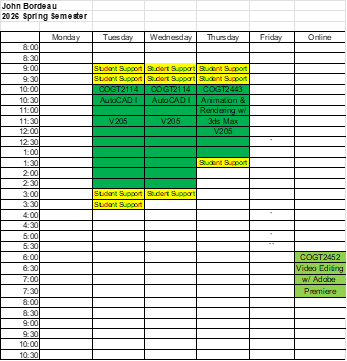
John R. Bordeau
Phone: 815-802-8863
Email: jbordeau@kcc.edu
Faculty Office: V207 (Upstairs of the Technology Building)
Web Site: https://sites.google.com/kcc.edu/john-bordeau/
KCC CAD Facebook Page: www.facebook.com/KCCcomputerGraphics
YouTube Channel: https://www.youtube.com/c/johnbordeauprofessor
Course Information
At the end of this course, students will be able to:
- Importing Media Files.
- Assemble Sequence in the Timeline.
- Edit Clips in the Timeline.
- Create Titles.
- Add Transitions to Clips.
- Preview a Sequence.
- Edit Audio.
- Adding Effects to a Sequence.
- Animating the Motion and Other Effects.
- Learning Compositing Techniques.
- Exporting the Sequence.
- Add Miscellaneous Effects.
- Introduction to Adobe Premiere Pro CC
- Importing Media Files
- Assembling Sequences in a Timeline
- Editing Clips in the Timeline
- Creating Titles
- Adding Transitions to Clips
- Previewing a Sequence
- Editing Audio
- Adding Effects to a Sequence – I
- Adding Effects to a Sequence – II
- Animating the Motion and Other Effects
- Compositing Techniques
- Exporting the Sequence
- Miscellaneous Effects
- Final Project Critique
Textbook and Supplies Information
Required Textbook
Name: Adobe Premiere Pro CC Classroom in a Book (2025) ISBN: 978-0-13-538283-7
Author: Jago
Required Supplies:
- Your mobile phone with video
- External storage drive (500Mb Min. 1Tb recommended)
- Internet access
- Headphones/earbuds with microphone (for online video conferences and presentations)
- Web cam (for online video conferences and presentations)
Optional Supplies:
- Digital SLR w/ Video or Video Camera
- SD Cards
Grading for the course will be based on study questions, quizzes, labs, projects and a comprehensive final project, and online discussions.
Program Grading Scale
Grade Points
A 900-1000
B 800-899
C 700-799
D 600-699
F 599 or less
Point Distribution:
Study Questions: 210 Points
Quizzes: 95 Points
Labs: 380 Points
Projects: 100 Points
Final Project: 105 Points
Discussions: 10 Points
Business, Technology & Human Services
Dean, Paul Carlson; 815-802-8858; V105; pcarlson@kcc.edu; Division Office – W102; 815-802-8650
Course Policies
Time Commitment Expectation
At a minimum, the average person can expect to spend two to six hours per week. This time will be dedicated to reading the textbook chapter(s), watching videos, answering study questions, studying for quizzes, and practicing Video Editing techniques.
Class Attendance
- Regular online attendance is expected.
- There are NO excused absences.
- To receive full class attendance points, you must login into Canvas three or more times per week.
- If a student misses four or more weeks in one semester, he/she will receive an automatic “F”.
Classroom Code of Conduct
- No Food or Drinks in the Graphic Design Lab (Room V107).
Study Questions Policy
- Study Questions can NOT be made up.
- Study Questions must be submitted by the date/time due.
- Any student failing to submit Study Questions by the date/time due will receive a zero.
- Study Questions may be opened and re-opened before submitting.
Lab Policy
- Labs must be submitted by the date/time due for full credit.
- Labs must be placed in the correct lab Assignment Submittal to receive credit.
- Lab can be turned in late until the death penalty (Until in Canvas).
Lab Death Penalty: (Until in Canvas)
- Labs can be turned late up to one week late.
- All late labs will be assessed a 10% (2 points) penalty.
- Any student failing to submit a lab by the death penalty will receive a zero.
- Labs will not be accepted after the lab death penalty date.
Quiz Policy
- Quizzes can not be made up.
- Any student missing a quiz will receive a zero.
- Any student arriving late for the quiz will not be given extra time to complete the quiz.
- Quizzes may not be taken online outside of class.
- Quizzes are timed.
- Quizzes are open notes and open textbook.
KCC Student Athletes Policy
- All student athletes will be granted attendance points while participating in KCC sporting events, not practices.
- All missed labs, quizzes and tests due to sporting events must be completed within one week of the scheduled quiz or test.
- All missed quizzes and tests due to sporting events must be rescheduled during posted office hours.
Final Project Policy
- The comprehensive final project is mandatory.
- Any student failing to submit a final project will lose two letter grades.
Incomplete Grade Policy
- All course requirements must be completed by the end date of the course.
- An incomplete grade will NOT be granted regardless of the extenuating circumstances.
Plagiarism
- KCC defines plagiarism: Representing the words or ideas of another as one’s own. Plagiarism includes claiming credit for assignments completed by someone else. Copying someone else’s digital file is plagiarism.
- In all academic work, the ideas and contributions of others must be appropriately acknowledged and work that is presented as original must be, in fact, original. Using an AI-content generator (such as CHATGPT) to complete coursework without proper attribution or authorization is a form of academic dishonesty. If you are unsure about whether something may be plagiarism or academic dishonesty, please contact your instructor to discuss the issue. First violation will result in a zero for the assignment. The second violation will result in “F” failing of the course.
Week 1, Introduction to Adobe Premiere Pro CC, Week of 1/12/2026
Learning Objectives:
- Work with panels
- Work with the workspaces
- Understand the Source Monitor and the Program Monitor
- Customize preferences
- Create a new project
Foundation Resources and Activities:
- Reading and Viewing Assignment:
- Jago, Chapters 1-2
- Premiere Pro Help User Guide
- Introduction to Premiere Pro
- Workspaces and Workflows
- Setting up a Project
- Study Questions: Introduction to Adobe Premiere Pro CC, Week 1 Friday 5:00 PM
Learning Activities:
- Review Syllabus
- Review Course Policies
- Review College Policies and Resources
- Introduction of Yourself Discussion, Week 1 Wednesday 9:00 PM
- Lab: Starting Adobe Premiere Pro CC and a New Project, Week 1 Saturday 3:00 PM
Week 2, Importing Media Files, Week of 1/19/2026
Learning Objectives:
- Import media files using the import option
- Import media files using the Media Browser panel
- Import multiple media files
- Import still images and layered Photoshop files
- Import a saved Premiere project into the opened project
Foundation Resources and Activities:
- Reading and Viewing Assignment:
- Jago, Chapter 3
- Premiere Pro Help User Guide
- Importing Footage
- Study Questions: Importing Media Files, Week 2 Monday 5:15 PM
Learning Activities:
- Quiz: Introduction to Adobe Premiere Pro CC, Week 2 Wednesday 9:00 PM
- Lab: Importing Media Files, Week 2 Saturday 3:00 PM
Week 3, Assembling Sequences in a Timeline, Week of 1/26/2026
Learning Objectives:
- Organize video clips in the Project panel
- Create a new sequence based on the specifications of a clip
- View clips in the Source Monitor
- Set the Source In and Source Out points
- Add clips to a sequence
- Perform the Overlay and Insert edits
- Use the Toggle Sync Lock and Toggle Track Lock buttons
- Perform the three-point Overlay and Insert edits
Foundation Resources and Activities:
- Reading and Viewing Assignment:
- Jago, Chapter 4 - 5
- Premiere Pro Help User Guide
- Editing Sequences and Clips
- Add clips to sequences
- Create and change sequences
- Rendering and previewing sequences
- Editing Sequences and Clips
- Study Questions: Assembling Sequences in a Timeline, Week 3 Monday 5:15 PM
Learning Activities:
- Quiz: Importing Media Files, Week 3 Wednesday 9:00 PM
- Lab: Assembling Sequence in a Timeline, Week 3 Saturday 3:00 PM
Week 4, Editing Clips in the Timeline, Week of 2/2/2026
Learning Objectives:
- Navigate a sequence in the Timeline panel
- Work with tracks
- Select clips using the Selection Tool
- Select clips using the Track Select Tool
- Use the Lift and Extract Tools
- Trim a clip using the Selection and Ripple Edit Tools
- Use the Rolling Edit Tool
- Use the Rate Stretch Tool
- Split and cut clips using the Razor Tool
- Perform the Slip and Slide Edits
Foundation Resources and Activities:
- Reading and Viewing Assignment:
- Jago, Chapter 6
- Premiere Help User Guide
- Editing Sequences and Clips
- Edit from sequences loaded into the Source Monitor
- Rearrange clips in a sequence
- Find, select, and group clips in a sequence
- Working with markers
- Create and play clips
- Trimming clips
- Editing Sequences and Clips
- Study Questions: Editing Clips in the Timeline, Week 4 Monday 5:15 PM
Learning Activities:
- Quiz: Assembling Sequence in a Timeline, Week 4 Wednesday 9:00 PM
- Lab: Editing Clips in the Timeline, Week 4 Saturday 3:00 PM
- Project 1
Week 5, Creating Titles, Week of 2/9/2026
Learning Objectives:
- Create a new still title
- Create a title along a path
- Add images to the title
- Create Photoshop title
- Superimpose titles in the sequence
- Create rolling titles
- Create crawling titles
Foundation Resources and Activities:
- Reading and Viewing Assignment:
- Jago, Chapter 15
- Premiere Help User Guide
- Graphics, Titles, and Motion Graphics
- Create titles and motion graphics
- Using Motion Graphics templates in Premiere Pro
- Graphics, Titles, and Motion Graphics
- Study Questions: Creating Titles, Week 5 Monday 5:15 PM
Learning Activities:
- Quiz: Editing Clips in the Timeline, Week 5 Wednesday 9:00 PM
- Lab: Creating Titles, Week 5 Saturday 3:00 PM
- Project 1
Week 6, Adding Transitions to Clips, Week of 2/16/2026
Learning Objectives:
- Add video and audio transition effects
- Modify the transition
- Apply transitions to multiple clips
Foundation Resources and Activities:
- Reading and Viewing Assignment:
- Jago, Chapter 7
- Premiere Help User Guide
- Effects and Transitions
- Apply and remove effects
- Applying transitions in Premiere Pro
- Types of effects in Premiere Pro
- Modifying and customizing transitions
- Effect presets
- Applying the Morph Cut transition
- Effects and Transitions
- Study Questions: Adding Transitions to Clips, Week 6 Monday 5:15 PM
Learning Activities:
- Quiz: Creating Titles, Week 6 Wednesday 9:00 PM
- Lab: Adding Transitions to Clips, Week 6 Saturday 3:00 PM
- Project 1
Week 7, Previewing a Sequence, Week of 2/23/2026
Learning Objectives:
- Render and preview a sequence
- Render the audio and video tracks together
- Locate missing media files
- Convert an online clip to an offline clip
Foundation Resources and Activities:
Reading and Viewing Assignment:
Premiere Help User Guide
- Editing Sequences and Clips
- Rendering and previewing sequences
- Working with offline clips
- Relinking offline media
- Editing Sequences and Clips
- Use Link Media to quickly locate and relink offline files
- Study Questions: Previewing a Sequence, Week 7 Monday 5:15 PM
Learning Activities:
- Quiz: Adding Transitions to Clips, Week 7 Wednesday 9:00 PM
- Lab: Previewing a Sequence, Week 7 Saturday 3:00 PM
- Project 1
Week 8, Editing Audio, Week of 3/2/2026
Learning Objectives:
- Understand audio levels
- Control the gain and volume
- Map the source audio channels
- Adjust the track volume level with keyframes
- Modify the track volume level using transitions
- Speech to Text
Foundation Resources and Activities:
- Reading and Viewing Assignment:
- Jago, Chapter 10-11
- Premiere Help User Guide
- Editing Audio
- Editing, repairing, and improving audio using Essential Sound panel
- Audio channel mapping in Premiere Pro
- Editing audio in a Timeline panel
- Adjusting volume levels
- Editing Audio
- Study Questions: Editing Audio, Week 8 Monday 5:15 PM
Learning Activities:
- Quiz: Previewing a Sequence, Week 8 Wednesday 9:00 PM
- Lab: Editing Audio, Week 8 Saturday 3:00 PM
- Project 2
Spring Break, Week of 3/9/2026, No Class
Week 9, Adding Effects to a Sequence – I, Week of 3/16/2026
Learning Objectives:
- Understand Waveform Monitors and Vectorscope
- Modify Fixed and apply Standard effects
- Remove effects from a clip
- Apply the Color Correction effect to a video clip
- Apply lighting effect to a clip
Foundation Resources and Activities:
- Reading and Viewing Assignment:
- Jago, Chapter 12-13
- Premiere Help User Guide
- Effects and Transitions
- Video effects and transitions in Premiere Pro
- Adjustment Layers
- Stabilize motion with the Warp Stabilizer effect
- Color correction effects
- The rolling shutter repair effect
- Effects and Transitions
- Study Questions: Adding Effects to a Sequence - I, Week 9 Monday 5:15 PM
Learning Activities:
- Quiz: Editing Audio, Week 9 Wednesday 9:00 PM
- Lab: Adding Effects to a Sequence - I, Week 9 Saturday 3:00 PM
- Project 2
Week 10, Adding Effects to a Sequence – II, Week of 3/23/2026
Learning Objectives:
- Apply various audio effects to audio clips
- Edit Audio using the Audio Mixer
- Automate changes in audio tracks using Audio Track Mixer
- Apply the Time Remapping effect in video clips
- Apply the Ultra Key effect in video clips
Foundation Resources and Activities:
- Reading and Viewing Assignment:
- Premiere Help User Guide
- Editing Audio
- Overview of audio and the Audio Track Mixer
- Monitor clip volume and pan using Audio Clip Mixer
- Editing audio in Adobe Audition
- Recording audio
- Audio Effects and Transitions
- The Ultra Key effect
- Editing Audio
- Premiere Help User Guide
- Study Questions: Adding Effects to a Sequence - II, Week 10 Monday 5:15 PM
Learning Activities:
- Quiz: Adding Effects to a Sequence – I, Week 10 Wednesday 9:00 PM
- Lab: Adding Effects to a Sequence - II, Week 10 Saturday 3:00 PM
- Project 2
Week 11, Animating the Motion and Other Effects, Week of 3/30/2026
Learning Objectives:
- Animate the position of a clip
- Add keyframes to scale a clip
- Add keyframes to rotate a clip
- Copy keyframes
- Interpolate keyframes
- Apply the interpolation methods
- Create picture-in-picture effect
- Animate the Basic 3D effect
- Apply and animate the Camera View effect
Foundation Resources and Activities:
- Reading and Viewing Assignment:
- Jago, Chapter 9
- Premiere Help User Guide
Animation and Keyframes
Animating effects
- Adding, navigating, and setting keyframes
- Moving and copying keyframes
- Optimize keyframe automation
- Controlling effect changes using keyframe interpolation
- Study Questions: Animating the Motion and Other Effects, Week 11 Monday 5:15 PM
Learning Activities:
- Quiz: Adding Effects to a Sequence – II, Week 11 Wednesday 9:00 PM
- Lab: Animating the Motion and Other Effects, Week 11 Saturday 3:00 PM
- Project 2
4/3/2025, Last Day to Withdrawal
Week 12, Learning Compositing Techniques, Week of 4/6/2026
Learning Objectives:
- Apply the Opacity effect
- Apply the Blend Modes
- Apply the Alpha Channel effects
- Apply the Garbage Matte Key Effects
- Apply the Image Matte Key Effect
- Apply the Track Matte Key Effect
Foundation Resources and Activities:
- Reading and Viewing Assignment:
- Jago, Chapter 14
- Premiere Help User Guide
- Compositing
- Blending modes
- Compositing, alpha channels, and adjusting clip opacity
- Compositing
- Study Questions: Learning Compositing Techniques, Week 12 Monday 5:15 PM
Learning Activities:
- Quiz: Animating the Motion and Other Effects, Week 12 Wednesday 9:00 PM
- Lab: Learning Compositing Techniques, Week 12 Saturday 3:00 PM
- Final Project
Week 13, Exporting the Sequence, Week of 4/13/2026
Learning Objectives:
- Export single frame
- Export a sequence to AVI file format
- Export a sequence to JPEG file format
- Export the sequence to various formats using Adobe Media Encoder
- Export the project to Final Cut Pro XML
Foundation Resources and Activities:
- Reading and Viewing Assignment:
- Jago, Chapter 16
- Premiere Help User Guide
- Exporting Media
- Workflow and overview for exporting
- Exporting projects for other applications
- Export a still image
- Exporting for the Web and mobile devices
- Exporting Media
- Study Questions: Exporting the Sequence, Week 13 Monday 5:15 PM
Learning Activities:
- Quiz: Learning Compositing Techniques, Week 13 Wednesday 9:00 PM
- Lab: Exporting the Sequence, Week 13 Saturday 3:00 PM
- Final Project Production
Week 14, Miscellaneous Effects, Week of 4/20/2026
Learning Objectives:
- Place light over a part of a clip
- Blur a part of a video clip
- Create the Split-Screen effect
- Zoom and pan a still image
Foundation Resources and Activities:
- Reading and Viewing Assignment:
- Premiere Help User Guide
- Blur a face as it moves throughout a clip
- Effects and Transitions > Creating common results
- Effects and Transitions > Use Motion effect to edit and animate clips
- Effects and Transitions > Masking and tracking
- Premiere Help User Guide
- Study Questions: Miscellaneous Effects, Week 14 Monday 5:15 PM
Learning Activities:
- Quiz: Exporting the Sequence, Week 14 Wednesday 9:00 PM
- Lab: Miscellaneous Effects, Week 14 Saturday 3:00 PM
- Final Project Production
Week 15, Final Project Production, Week of 4/27/2026
Learning Activities:
- Quiz: Miscellaneous Effects, Week 15 Wednesday 9:00 PM
- Final Project Upload Video, Due Week 15 Wednesday 9:00 PM
- Final Project Production
Week 16, Final Project Critique and Reflection, Week of 5/4/2025
Learning Activities:
- Final Project Critique, Due Week 16 Saturday 3:00 PM
- Final Project Production
Final Week, Final Project Submittal, Week of 5/11/2026
The final project is comprehensive and is required to pass the class.
Learning Activities:
- Final Reflection, Due Wednesday 9:00 PM
- Final Project Submittal, Due Wednesday 9:00 PM
College Policies, Resources and Supports
For information related to the Student Code of Conduct Policy, Withdrawal Policy, Email Policy, and Non- Attendance/Non-Participation Policy, please review the college’s Code of Campus Affairs and Regulations webpage, which can be found at catalog.kcc.edu under the Academic Regulations & Conduct Guide.
KCC offers various academic and personal resources for all students. Many services are offered virtually, as well as in person. Please visit Student Resources - Kankakee Community College to access student resources services such as:
- Clubs and organizations
- Counseling and referral services
- Office of disability services
- Student complaint policy
- Transfer services
- Tutoring services, etc.
The materials on this course are only for the use of students enrolled in this course for purposes associated with this course. Further information regarding KCC's copyright policy is available at https://kcc.libguides.com/copyright.
|Course syllabus/calendar is subject to change.